
Information
This article is based on macOS 11 or later versions. Some of the instructions may differ, depending on the version of macOS you are on.
Open Outlook on your Mac.
Navigate to the menu bar and click on Outlook, then click on Settings…

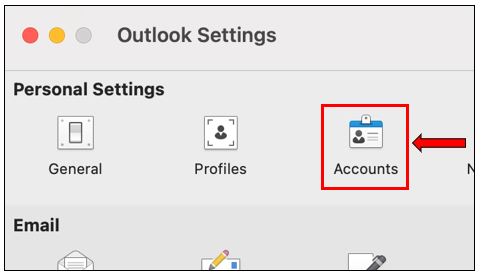
Click on Accounts under Outlook Settings.
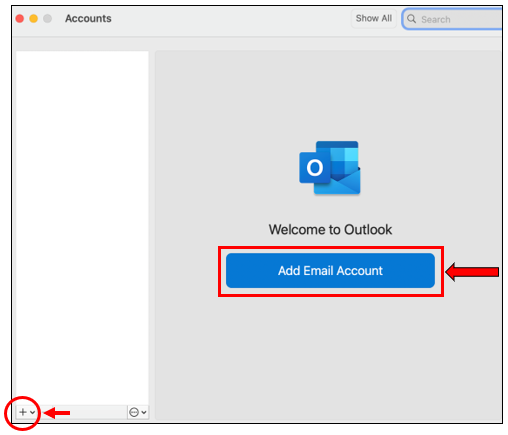
Next, click on Add Email Account, or the ‘+’ icon on the bottom left corner.
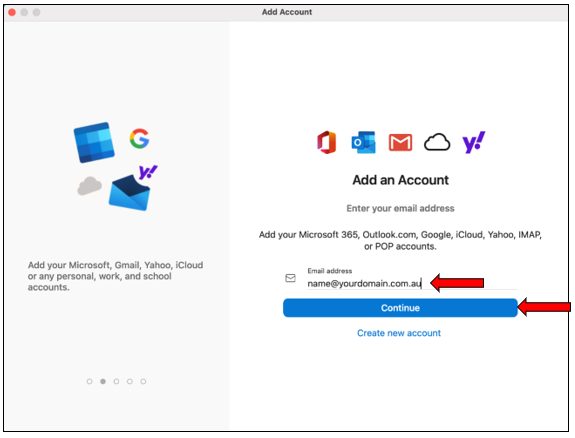
Enter your full email address. Click on Continue.
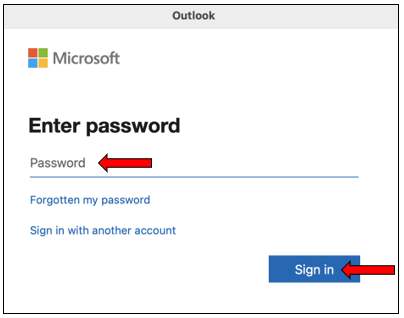
Enter your password, and click on Sign in.
If you have already the Microsoft Authenticator app on your phone, it will provide you with a 2-digit number. Enter that number into the Microsoft Authenticator app.
Otherwise, follow the instructions in the below link on a step-by-step guide on setting up Multi-Factor Authentication (MFA).
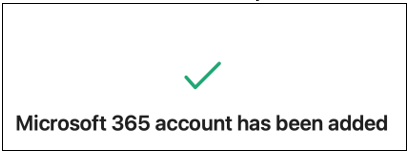
Your account has been successfully added to Outlook.
Accessing your Exchange emails via Outlook on the web
Outlook on the web is a web-version of Microsoft Outlook. It enables you to access your Exchange email account on any computer or devices.
To access Outlook on the web, enter the below URL in your web browser: