
To login to your cPanel account, you can login via
- https://yourdomain.com.au/cpanel (your actual domain) or;
- via MyToolbox.
Your cPanel username and password would have been sent to you in the email when you signed up with us, subject titled “New Account Information“. If you have misplaced this email, please contact us and we are happy to resend you this email.
Before contacting us
Please make sure that you are officially listed as an authorised account holder on your account. We cannot provide login information to individuals who are not the account owner or designated as authorised users on the account.
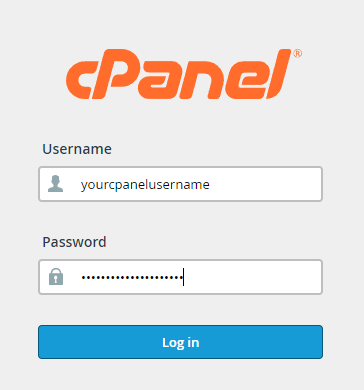
If your email is hosted with Google Apps and you need to configure the MX records for your email to continue function correctly if you are going to use our nameservers for your domain. It is best to update these DNS records prior to updating your nameservers at the domain registrar. To do this, you need to login to your cpanel account.
First, please login to your cPanel using either of the methods outlined above.
Then, scroll down to Domains and select DNS Zone Editor:

Find the domain name you want to update the MX Records for, and select Manage.

Then, under Filter select MX, so that only the MX records are showing. Now click Delete to delete the old MX records.
Note:
Before you delete the records, you should make a copy of them somewhere, in case you ever have to restore the old records.

Now we can add the new records. To add a new MX record, click the arrow on the Add Record button, and then select Add “MX Record” from the dropdown menu.

Here you need to enter the following MX Records:
| Priority | Destination |
| 1 | aspmx.l.google.com |
| 5 | alt1.aspmx.l.google.com |
| 5 | alt2.aspmx.l.google.com |
| 10 | aspmx2.googlemail.com |
| 10 | aspmx3.googlemail.com |
Repeat for check record, by clicking Add Record, until you have added all of the records.
The MX records have been successfully updated.
In order to make sure mail gets sent from the server correctly, we also need to update the Email Routing.
To do this, return to the cPanel home page, and under Email, select Email Routing.
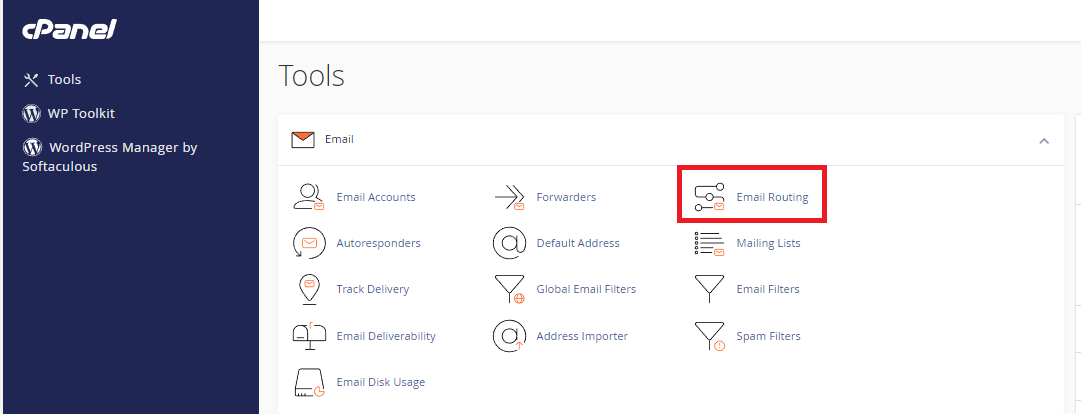
Select the option that says “Remote Mail Exchanger“, and then click the “Change” button.

You have successfully updated your email settings.