
This tutorial is for people needing to upload files to your website. You will need an FTP program such as CuteFTP or FileZilla. If you don’t have one, you can do a Google search on “FTP Program”. Perth Web Hosting recommends using Filezila. If you are unsure, please refer to our article: What FTP program do I use?
Each program is different as to how to run the program. You should consult the manual for further assistance.
To connect to your site via FTP, you need to look for new then look for these textboxes:Host / IP: This can be your domain name (i.e. yourdomain.com.au), the server hostname, or the IP Address your website, will be hosted on (i.e. 103.13.84.xxx). You can find the IP address you need to use when logging into your cPanel hosting Account. In this example,
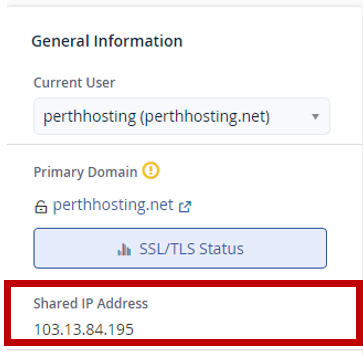
If you have not redelegated your domain name or the website DNS records, you can use the server hostname or IP Address of the server as the Hostname.
Username: Your cPanel username (This username can be found in the email you would have received when you first signed up with Perth Web Hosting with the subject “New Account Information”)
Password: Your cPanel Password (This password can be found in the email you would have received when you first signed up with Perth Web Hosting with the subject “New Account Information”).
Protocol: FTP – File Transfer Protocol
Port: 21
Login Type: Normal
Encryption: Plain or Require Explicit FTP over TLS (A warning may appear when connecting to the server if using Require Explicit FTP over TLS. When prompted, please click Always Trust this server certificate for future sessions.)
If you require access to the directory where the Primary domain file contents are stored, the directory you need to access is /public_html. If you create a new add-on domain (or subdomain) in cPanel, this directory may be outside the public_html directory in another location.
Please Note:
Your cPanel username and Password are the master login to the FTP account. Changing your cPanel password will also change the password to the FTP password. You cannot have two different passwords to access FTP and your cPanel account via the website. You can create additional FTP accounts in cPanel and restrict users to a specific directory.
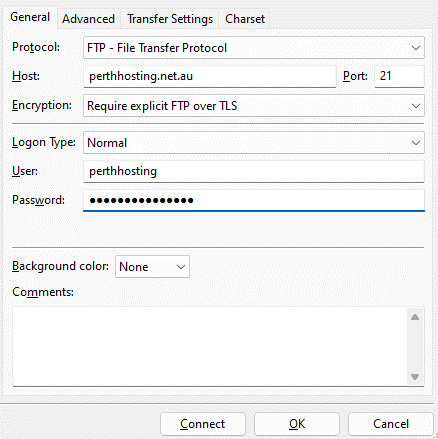
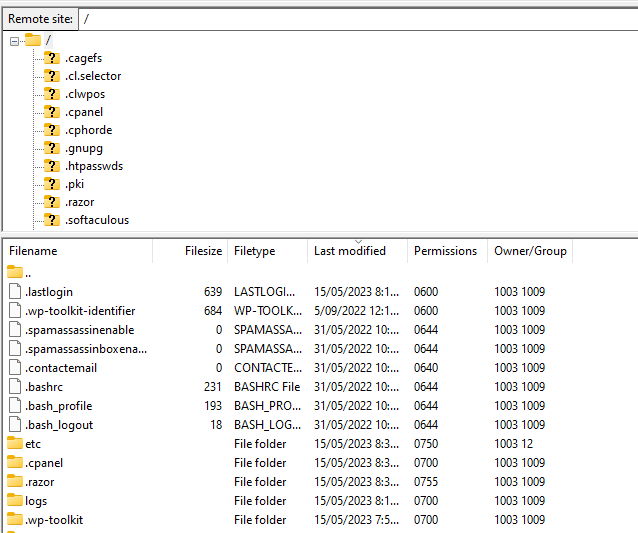
When connected to your FTP account, you should see the file directory structure of what’s in your cPanel directory. If you have created an extra cPanel FTP account, you will only see the file structure that you are limited too. In this example, we connected using our main cPanel username and password.
Please Note:
Some directories are needed for cPanel to run. Removing these directories can lead to your cPanel account being inoperable. If in doubt, please check with us before removing any directories.