
Please Note:
Please ensure where it says ‘username’, you need to place your full email address otherwise, you will not be able to connect to the email account. Where it says ‘mail.yourdomain.com.au’, replace yourdomain.com.au with your actual domain name. Some of the instruction may differ depending on the version of iOS you are on.
This article is a guide to set up cPanel (IMAP or POP3) email account on your iPhone / iPad.
For this example, the interface will be similar for those who are on iOS 14 – 17. The first few steps may be different for those who are on iOS 11 – 13.
iOS 14 – 17 (Current)
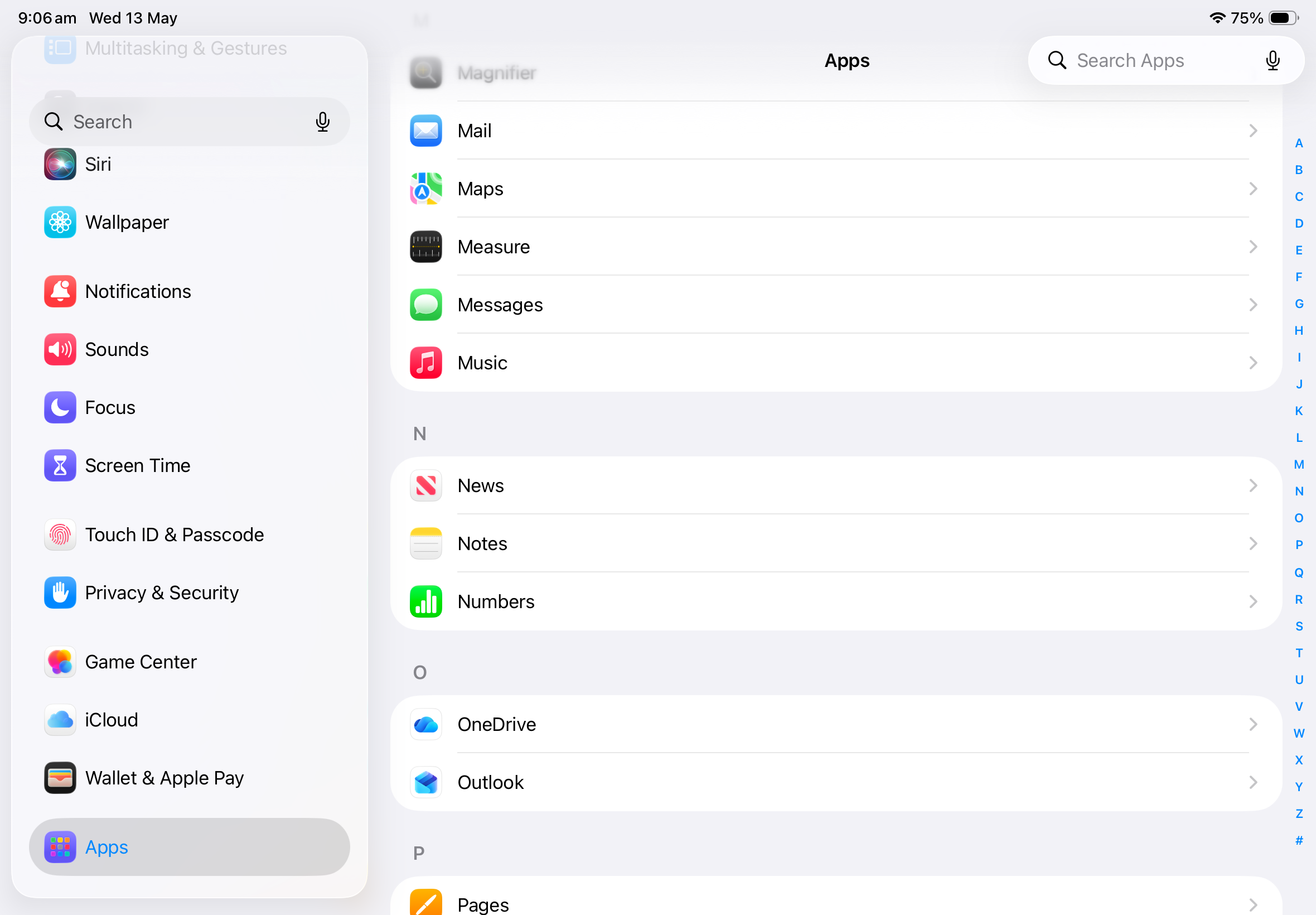
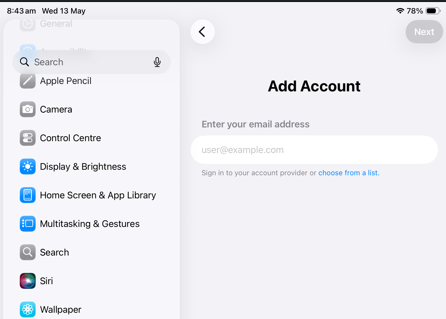
1. Go to Settings, scroll down, select Apps and then select Mail.
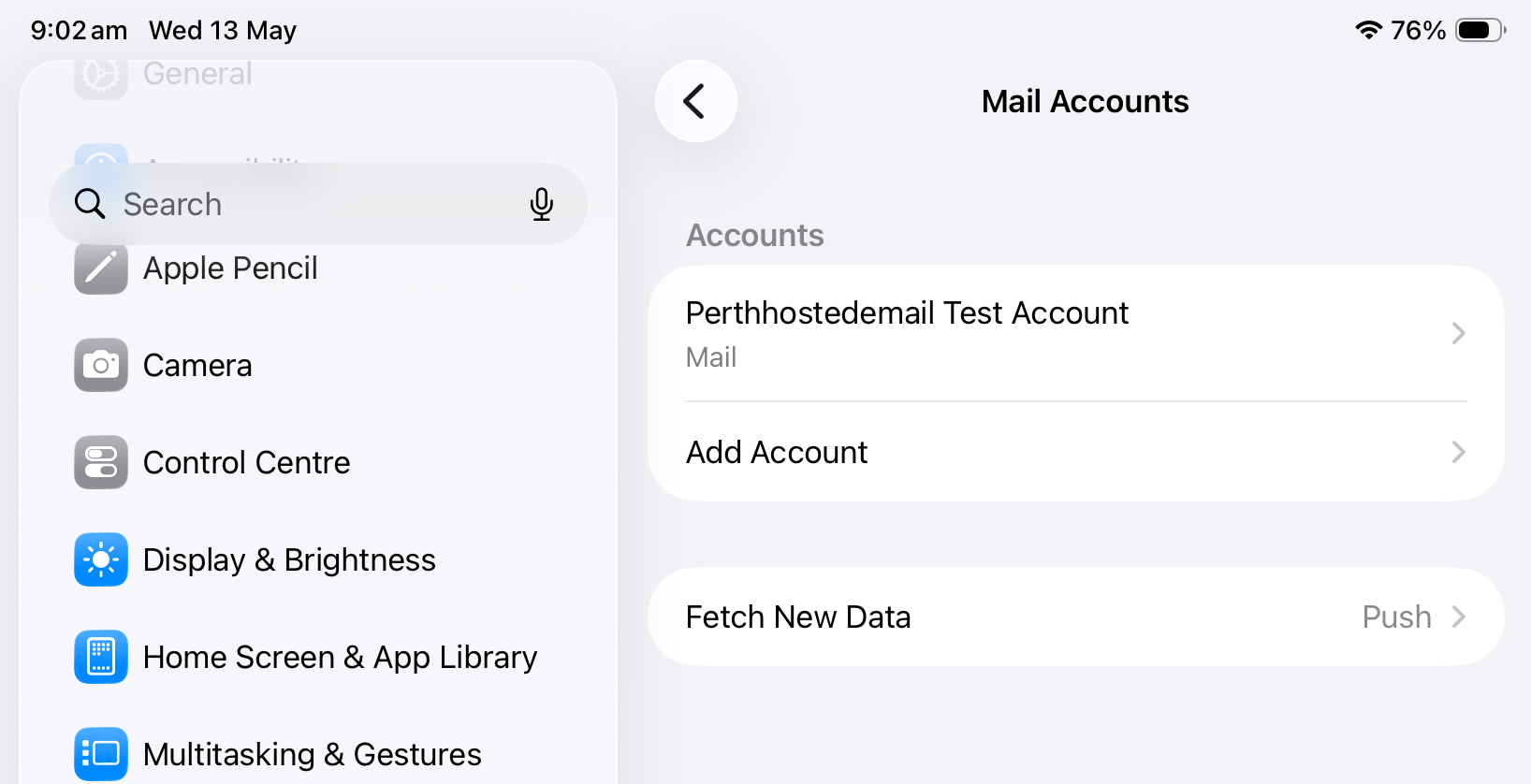
2. Tap on Mail Accounts.

3. Continue to tap on Add Account.
iOS 11 – 13
1. Open Settings on your iPhone / iPad.
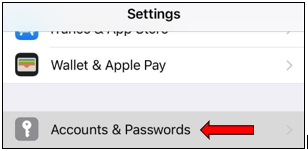
2. Scroll down and tap on Accounts & Passwords.
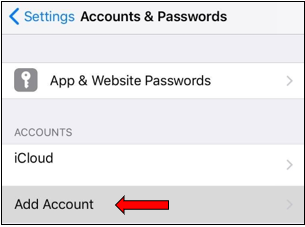
3. Tap on Add Account.
4. Select Choose from a list, Add other account, and then Mail Account.
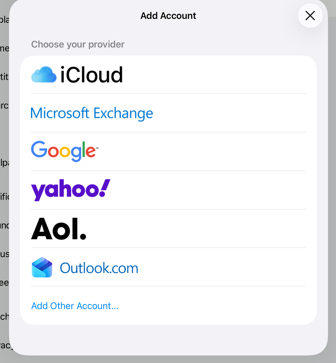
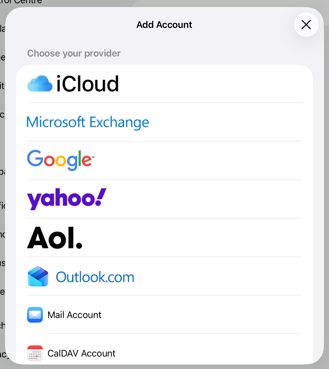

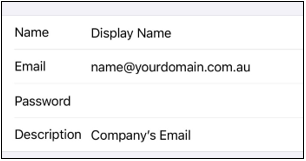
5. Enter the following details:
| Name | Enter your full name (i.e John Paul) |
| Enter your full email address (e.g. joe@yourdomain.com.au) | |
| Password | Your password which you had set in cPanel. |
| Description | The displayed description of your email account. |
Please Note:
Please ensure where it says ‘username’, you need to place your full email address otherwise, you will not be able to connect to the email account. Where it says ‘mail.yourdomain.com.au’, replace yourdomain.com.au with your actual domain name. Some of the instruction may differ depending on the version of iOS you are on.
6. Tap on Next to expand for more settings.
You may choose to set up as IMAP or POP through the tabs on top of the screen. We recommend using IMAP. (Click here for the difference between IMAP and POP)
iOS 11 – 13
You may need to scroll back up to locate the Next button.
If a box “Cannot Verify Server Identity” prompts you, proceed and tap the Continue button.
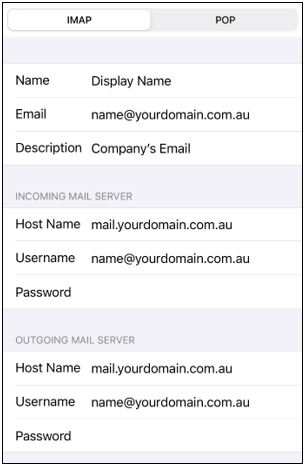
Continue to enter the mail settings as below:
Please Note:
Please ensure where it says ‘username’, you need to place your full email address otherwise, you will not be able to connect to the email account. Where it says ‘mail.yourdomain.com.au’, replace yourdomain.com.au with your actual domain name. Some of the instruction may differ depending on the version of iOS you are on.
Incoming Mail Server
| Host Name | mail.yourdomain.com.au (replace yourdomain.com.au with your website’s domain name) |
| Username | Enter your full email address (e.g. joe@yourdomain.com.au) |
| Password | Your password which you had set in cPanel. |
Outgoing Mail Server
| Host Name | mail.yourdomain.com.au (replace yourdomain.com.au with your website’s domain name) |
| Username | Enter your full email address (e.g. joe@yourdomain.com.au) |
| Password | Your password which you had set in cPanel. |
Information
The incoming and outgoing hostname can be the same on our platform.
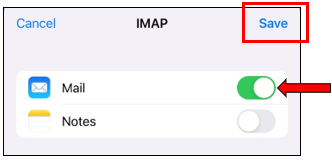
7. Lastly, make sure the Mail option is selected and tap on Save.
Your account has been added to the Mail app.
Accessing your Exchange emails via Outlook on the web
Outlook on the web is a web-version of Microsoft Outlook. It enables you to access your Exchange email account on any computer or devices.
To access Outlook on the web, enter the below URL in your web browser: