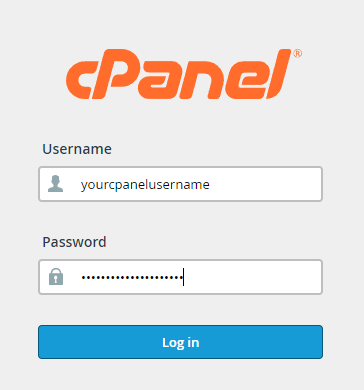
To login to your cPanel account, you can login via
- https://yourdomain.com.au/cpanel (your actual domain) or;
- via MyToolbox.
Your cPanel username and password would have been sent to you in the email when you signed up with us, subject titled “New Account Information“. If you have misplaced this email, please contact us and we are happy to resend you this email.
Before contacting us
Please make sure that you are officially listed as an authorised account holder on your account. We cannot provide login information to individuals who are not the account owner or designated as authorised users on the account.
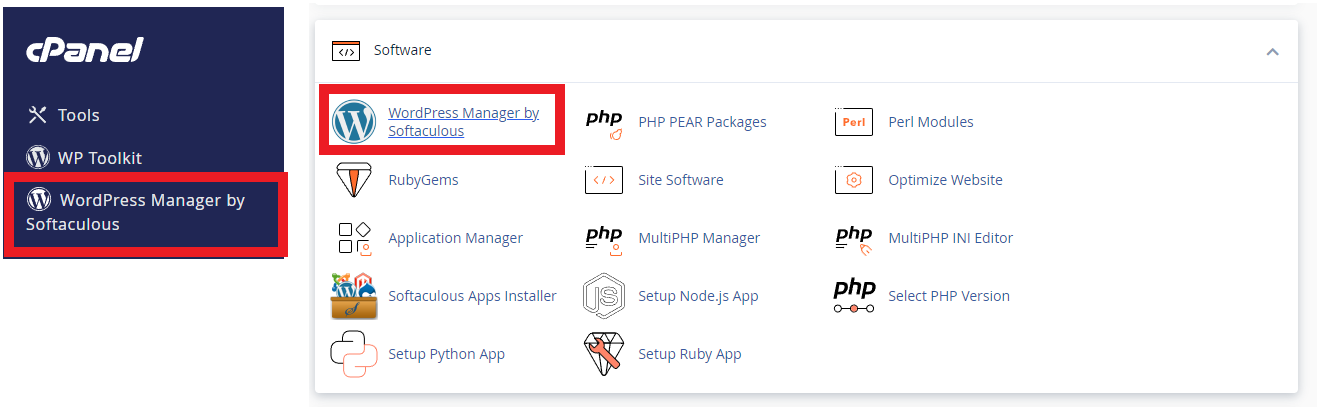
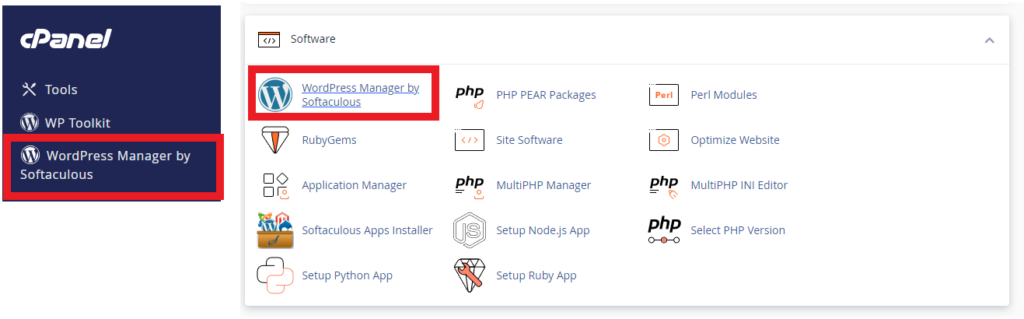
Once logged into cPanel, you should see a management area where you can manage all aspects of your web hosting service. On the left hand side of the screen in the Navy Blue side bar, you will see WordPress Manager by Softaculous. Click on WordPress Manager by Softaculous here or, you can scroll down to the Software heading, and you can access WordPress Manager by Softaculous here also.
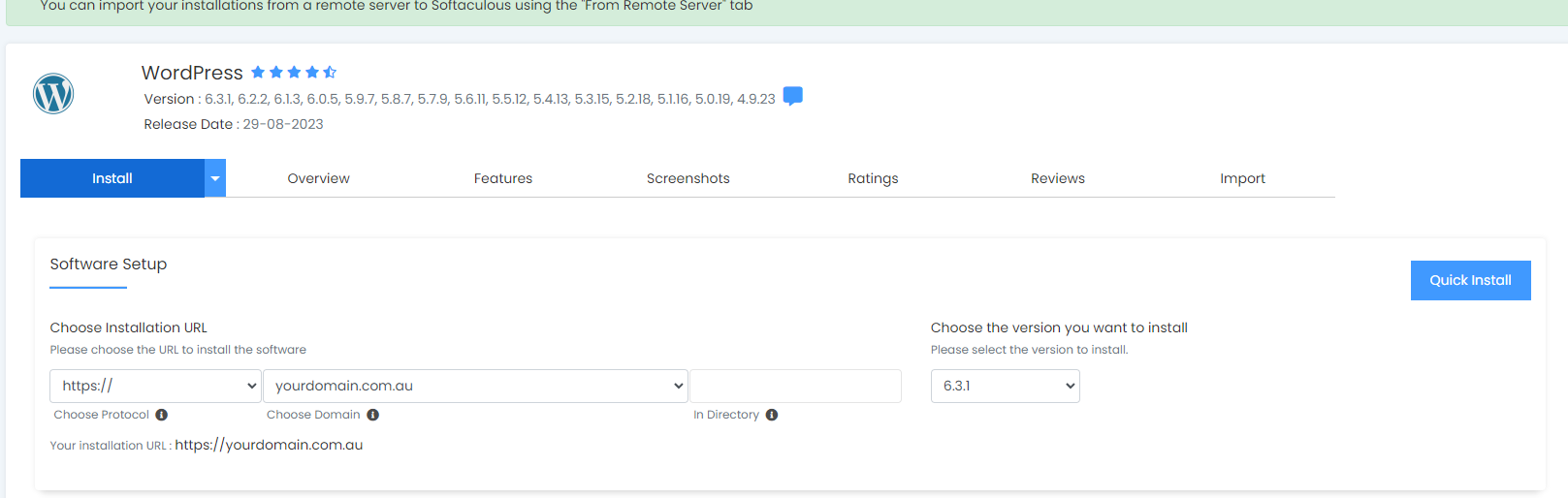
Once you have selected WordPress Manager by Softaculous you should be presented with a screen similar to the example below.
Click on the Install button to begin installing WordPress

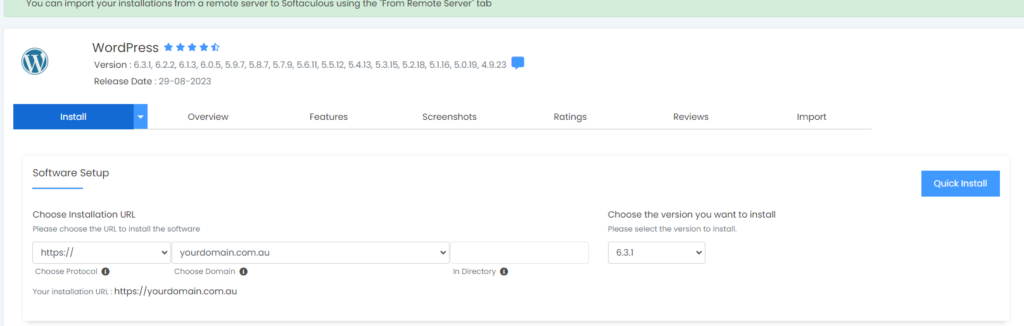
In this example, we are going to install WordPress version 6.3.1 for domain https://www.yourdomain.com.
In the Software Setup we want to choose https://www for choose protocol. In Choose Domain we will be selecting yourdomain.com.au from the dropdown field and, in the In Directory textfield we want to leave blank.
At the time of writing this article, the latest version of WordPress is 6.3.1. In the dropdown field for Choose the version you want to install we will be selecting version 6.3.1
See an error that the site does not have a certificate installed?
If you have just installed the domain, for the SSL to be installed correctly, the DNS must be pointing to the server for the SSL certificate to be generated correctly. You can continue setting up WordPress in ‘https’ mode, however a Certificate warning error will still show until the SSL certificate is generated. This will not stop the viewing of your site.
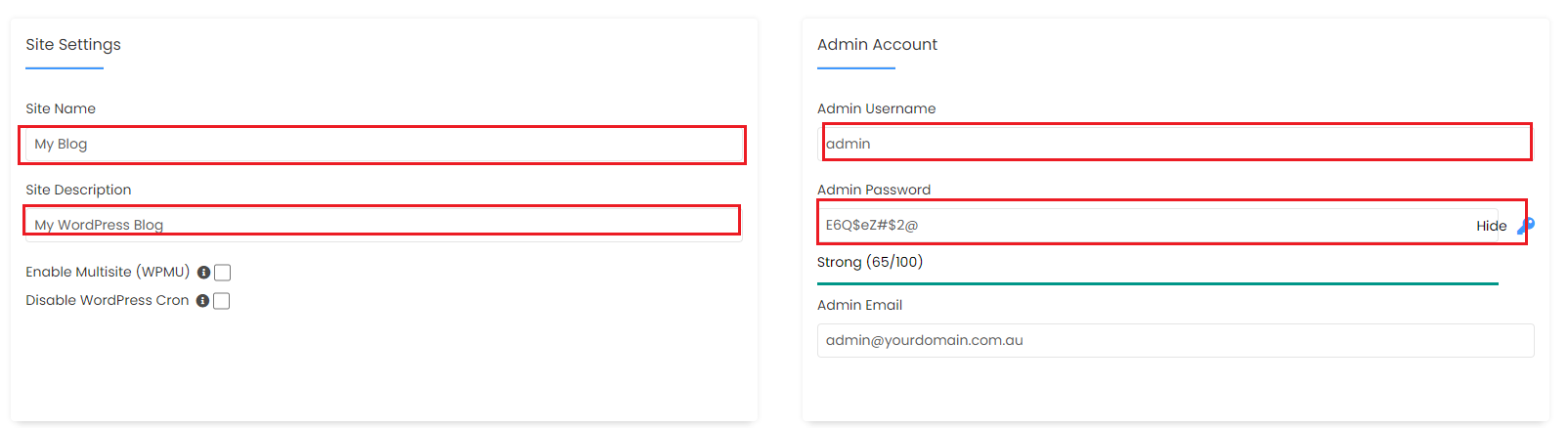
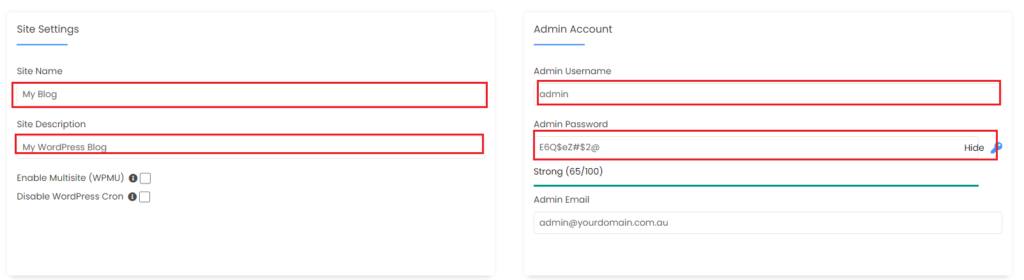
In site settings, give your site name a name and a site description. Under Admin Username, It is recommended that you use a non-generic username and use a strong password. All these settings are up to you and you are able to change these details later on within the WordPress dashboard. We recommend setting these now so it’s one less step you need to do later on.
Advanced Options (only if you want to)
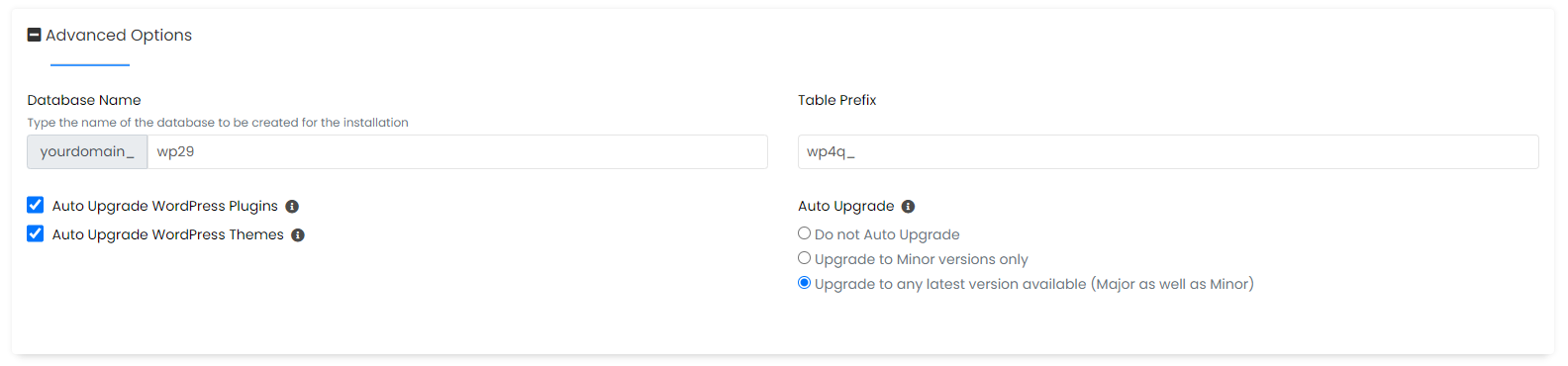
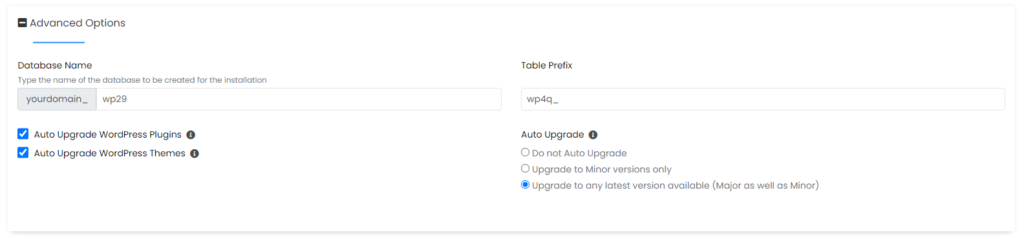
In the Database Name this field is generally OK. you can change the database name is you want to.
The Table Prefix setting pertains to the prefix used for MySQL database tables. It is advisable to refrain from altering this field, especially if you are not well-versed in MySQL table naming conventions. By default, this value is set to “wpXXX_,” and there is typically no need to modify it.
Our recommendation
We strongly advise you to configure only the essential settings in this wizard. After setting up WordPress, you can easily install WordPress themes and plugins using the WordPress Dashboard. Additionally, we recommend keeping the “Auto Upgrade” options enabled to ensure that your WordPress installation stays up-to-date. Softaculous will automatically handle updates for your site’s plugins and themes.
It’s important to note that leaving these options unchecked can result in automatic updates for your WordPress site, which may potentially compromise its security.
Please be aware that automatic updates for premium plugins and themes will only occur if your subscription for them is current and active. The system does not automatically update premium plugins and themes without an active subscription.
Once you have entered your details, you can press the blue Install button to install a fresh copy of WordPress.
This may take a few minutes. Once complete, return to cPanel and select WordPress Manager by Softaculous again.
Click the button that says Scan, and you should be presented with a screen similar to the example below.
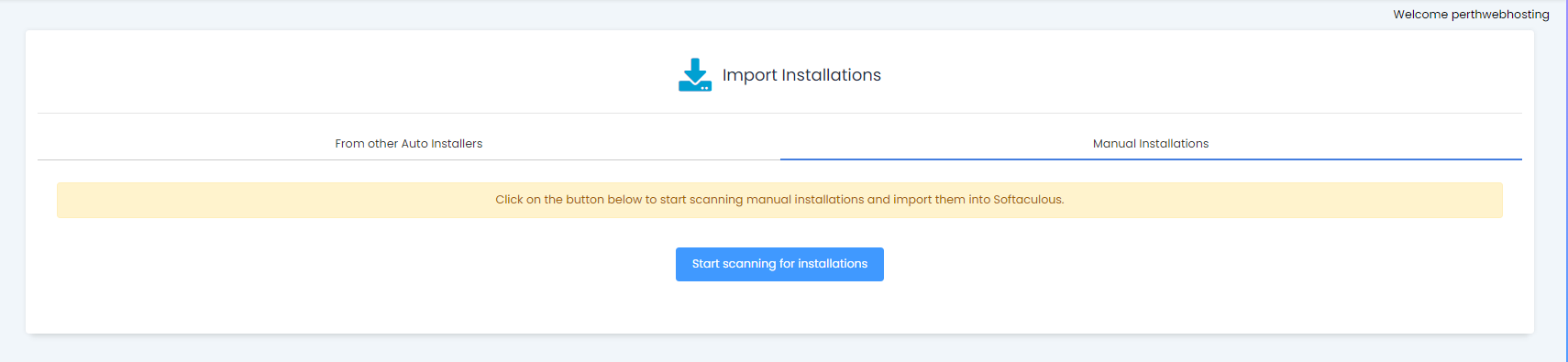
Click the button that says Start Scanning For Installations. This will scan for and detect the WordPress installation you just created.
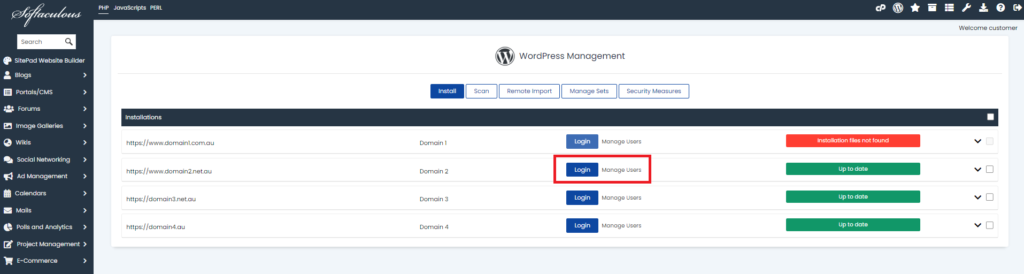
Once it has finished, select Return to WordPress Management and you should be presented with a screen similar to the example below.
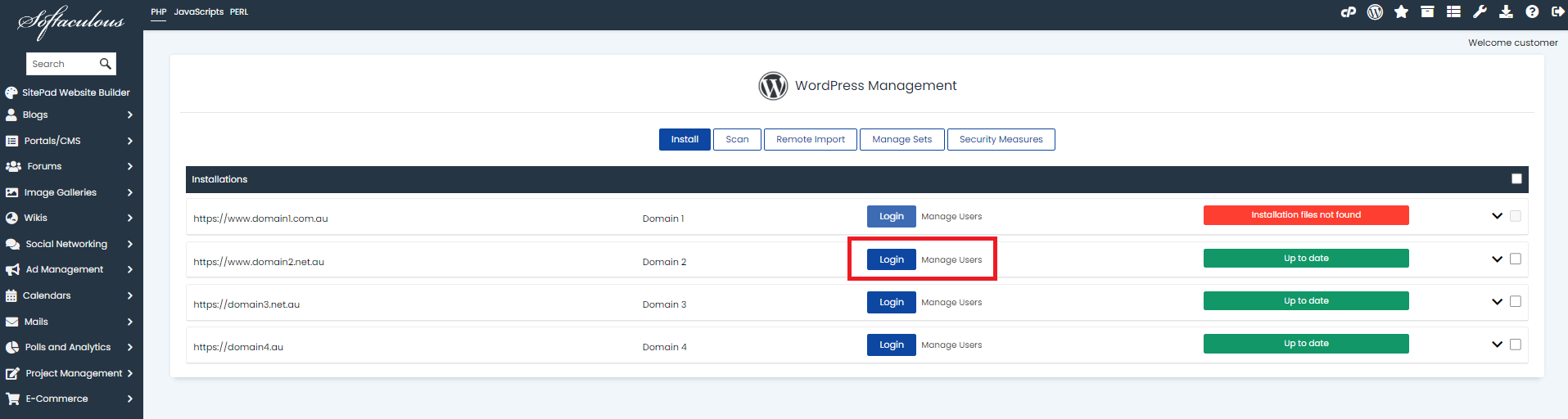
Click the Login button next to your WordPress installation to log into Softalucious WordPress Manager.
You can now begin to build and edit your website.
Step 1
Once logged into cPanel, you should see a management area where you can manage all aspects of your web hosting service. On the left hand side of the screen in the Navy Blue side bar, you will see WordPress Manager by Softaculous. Click on WordPress Manager by Softaculous here or, you can scroll down to the Software heading, and you can access WordPress Manager by Softaculous here also.
Step 2
Once you have selected WordPress Manager by Softaculous you should be presented with a screen similar to the example below.
Click on the Install button to begin installing WordPress

Step 3
In this example, we are going to install WordPress version 6.3.1 for domain https://www.yourdomain.com.
In the Software Setup we want to choose https://www for choose protocol. In Choose Domain we will be selecting yourdomain.com.au from the dropdown field and, in the In Directory textfield we want to leave blank.
At the time of writing this article, the latest version of WordPress is 6.3.1. In the dropdown field for Choose the version you want to install we will be selecting version 6.3.1
Step 4
In site settings, give your site name a name and a site description. Under Admin Username, It is recommended that you use a non-generic username and use a strong password. All these settings are up to you and you are able to change these details later on within the WordPress dashboard. We recommend setting these now so it’s one less step you need to do later on.
Step 5
Advanced Options (only if you want to)
In the Database Name this field is generally OK. you can change the database name is you want to.
The Table Prefix setting pertains to the prefix used for MySQL database tables. It is advisable to refrain from altering this field, especially if you are not well-versed in MySQL table naming conventions. By default, this value is set to “wpXXX_,” and there is typically no need to modify it.
Our recommendation
We strongly advise you to configure only the essential settings in this wizard. After setting up WordPress, you can easily install WordPress themes and plugins using the WordPress Dashboard. Additionally, we recommend keeping the “Auto Upgrade” options enabled to ensure that your WordPress installation stays up-to-date. Softaculous will automatically handle updates for your site’s plugins and themes.
It’s important to note that leaving these options unchecked can result in automatic updates for your WordPress site, which may potentially compromise its security.
Please be aware that automatic updates for premium plugins and themes will only occur if your subscription for them is current and active. The system does not automatically update premium plugins and themes without an active subscription.
Step 6
Once you have entered your details, you can press the blue Install button to install a fresh copy of WordPress.
This may take a few minutes. Once complete, return to cPanel and select WordPress Manager by Softaculous again.
Click the button that says Scan, and you should be presented with a screen similar to the example below.
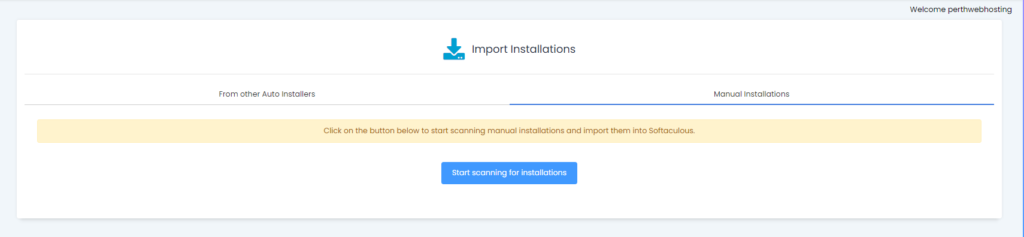
Click the button that says Start Scanning For Installations. This will scan for and detect the WordPress installation you just created.
Step 7
Once it has finished, select Return to WordPress Management and you should be presented with a screen similar to the example below.
Click the Login button next to your WordPress installation to log into Softalucious WordPress Manager.
You can now begin to build and edit your website.